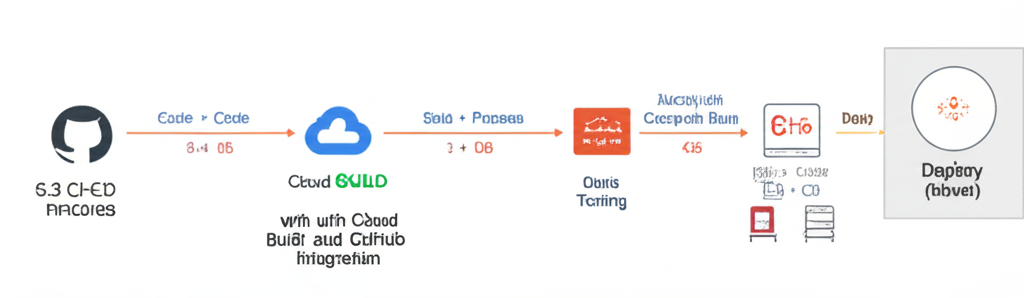
Level Up Your Deployment Game: CI/CD with Cloud Build and GitHub
Continuous Integration and Continuous Delivery (CI/CD) are buzzwords you hear a lot these days, but what do they actually mean and, more importantly, how can they help you? In a nutshell, CI/CD is all about automating the software development lifecycle, from the moment you commit code to the moment it’s running live in your application.
Think of it like an assembly line for your code. Each step is automated, making the process faster, more reliable, and less prone to human error.
In this post, we’ll dive into how you can implement a basic CI/CD pipeline using Google Cloud Build and GitHub. This combination offers a powerful and accessible way to automate your deployments and get your code into production quickly and efficiently.
Why Cloud Build and GitHub?
- Cloud Build: Google’s fully managed CI/CD service. It executes your builds on Google Cloud infrastructure, meaning you don’t have to manage your own servers or infrastructure. It supports a variety of build environments and integrates seamlessly with other Google Cloud services.
- GitHub: A popular code hosting platform that most developers are already familiar with. It allows you to manage your code, track changes, and collaborate with others.
Let’s Get Building! (Pun Intended)
Here’s a step-by-step guide to setting up a simple CI/CD pipeline:
1. Prerequisites:
- A Google Cloud Platform (GCP) account with billing enabled. If you don’t have one, sign up for a free trial!
- A GitHub account.
- A simple application (e.g., a basic Python script, a Node.js server, or a static website) hosted in a GitHub repository. For this example, we’ll assume you have a simple Python “Hello World” application.
- The Google Cloud SDK (gcloud) installed and configured on your local machine.
2. Grant Cloud Build Permissions:
Cloud Build needs permission to access your Google Cloud resources. The easiest way to grant these permissions is through the GCP console:
- Go to the IAM & Admin > IAM page in the Google Cloud Console.
- Find the Cloud Build service account. It will usually be named like
PROJECT_NUMBER@cloudbuild.gserviceaccount.com. - Click the pencil icon to edit the permissions.
- Grant the service account the following roles:
- Cloud Build Service Agent: (Essential for Cloud Build operations)
- Cloud Run Invoker: (Required if deploying to Cloud Run – we’ll cover this later)
- Storage Object Viewer: (Needed if you’re using Google Cloud Storage)
For security best practices, you should only grant the minimum necessary permissions for your build.
3. Create a cloudbuild.yaml File:
This file defines the steps in your CI/CD pipeline. It’s the heart of your Cloud Build configuration. Create a file named cloudbuild.yaml in the root of your GitHub repository.
Here’s a basic example that builds and deploys a simple “Hello World” Python application to Cloud Run:
steps:
  # Step 1: Build the Docker image
  - name: 'gcr.io/cloud-builders/docker'
    args: ['build', '-t', 'gcr.io/$PROJECT_ID/hello-world:$SHORT_SHA', '.']

  # Step 2: Push the Docker image to Google Container Registry
  - name: 'gcr.io/cloud-builders/docker'
    args: ['push', 'gcr.io/$PROJECT_ID/hello-world:$SHORT_SHA']

  # Step 3: Deploy to Cloud Run
  - name: 'gcr.io/cloud-builders/gcloud'
    args:
      - 'run'
      - 'deploy'
      - 'hello-world'
      - '--image=gcr.io/$PROJECT_ID/hello-world:$SHORT_SHA'
      - '--platform=managed'
      - '--region=us-central1' # Or your preferred region
      - '--allow-unauthenticated' # Make the service publicly accessible
Explanation:
steps: A list of steps Cloud Build will execute.name: The name of the builder image to use.gcr.io/cloud-builders/dockeris a Docker builder, andgcr.io/cloud-builders/gcloudis a builder that includes thegcloudCLI tool.args: Arguments passed to the builder image.docker build: Builds a Docker image from the Dockerfile in your project directory (assumed). The-tflag tags the image with a unique name based on the project ID and a shortened commit SHA ($SHORT_SHA).docker push: Pushes the Docker image to Google Container Registry (GCR), a private registry for storing Docker images within Google Cloud.gcloud run deploy: Deploys the Docker image to Cloud Run, a serverless compute platform that lets you run containers without managing servers.
Important Notes:
- Replace
$PROJECT_IDwith your actual Google Cloud project ID. - You’ll need a
Dockerfilein your repository to define how your application should be built into a Docker image. Here’s a basic example:
FROM python:3.9-slim-buster

WORKDIR /app

COPY requirements.txt .
RUN pip install -r requirements.txt

COPY . .

CMD ["python", "main.py"]
- This example assumes you’re deploying to Cloud Run. You can adapt the
cloudbuild.yamlfile for other deployment targets, such as Google Kubernetes Engine (GKE), App Engine, or even virtual machines (VMs).
4. Connect Cloud Build to Your GitHub Repository:
- Go to the Cloud Build > Triggers page in the Google Cloud Console.
- Click “Create Trigger”.
- Give your trigger a name (e.g., “GitHub Push”).
- Select “GitHub” as the source. You’ll be prompted to authenticate with GitHub and select your repository.
- Choose the event that will trigger the build (e.g., “Push to a branch” or “Create a tag”).
- Specify the branch to trigger on (e.g., “main”).
- Select “Cloud Build configuration file (yaml or json)” as the build configuration.
- Set the location to the root directory (
/). - Click “Create”.
5. Test Your Pipeline:
- Make a small change to your code (e.g., update the “Hello World” message).
- Commit and push your changes to your GitHub repository.
- Cloud Build should automatically trigger a new build. You can monitor the progress in the Cloud Build history.
Congratulations! You’ve just created a basic CI/CD pipeline.
Taking It Further:
This is just the beginning. You can expand your pipeline to include:
- Automated Testing: Run unit tests and integration tests to ensure your code is working correctly before deployment.
- Code Analysis: Use tools like SonarQube to detect potential code quality issues.
- Security Scanning: Scan your Docker images for vulnerabilities.
- Deployment to Multiple Environments: Deploy to development, staging, and production environments.
- Rollbacks: Automate the process of reverting to a previous version of your application if something goes wrong.
Troubleshooting:
- Permissions Issues: Double-check that the Cloud Build service account has the necessary permissions.
- Configuration Errors: Carefully review your
cloudbuild.yamlfile for syntax errors or incorrect settings. - Build Failures: Examine the Cloud Build logs to identify the cause of the failure.
Conclusion:
CI/CD pipelines with Cloud Build and GitHub can significantly improve your software development workflow. They automate the build, test, and deployment processes, reducing errors, increasing speed, and ultimately delivering better software faster. Start simple, iterate, and you’ll be well on your way to building a robust and reliable CI/CD pipeline that fits your needs. Happy building!