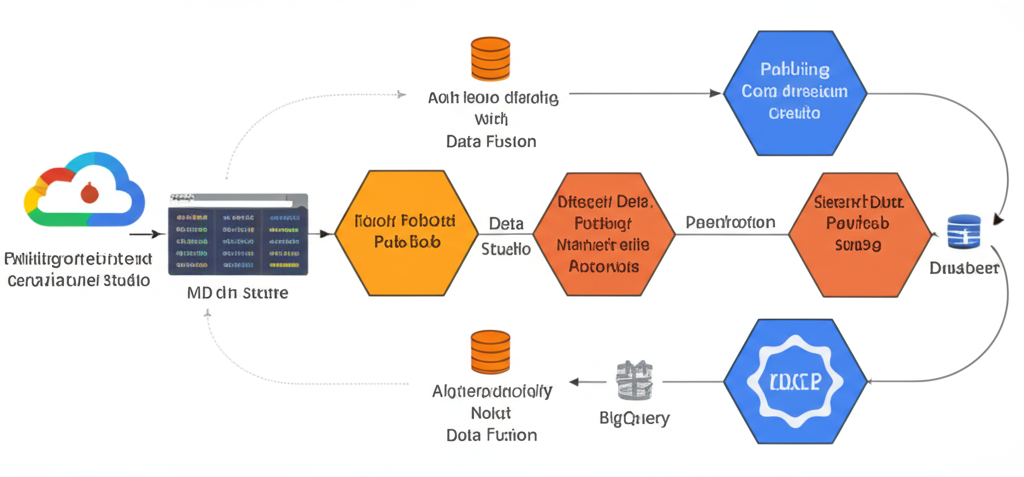
From Zero to Hero: Building Data Pipelines with Pub/Sub and Data Fusion on GCP
Data pipelines are the unsung heroes of modern data analysis. They’re the automated processes that collect, transform, and load data from various sources into a usable format for analysis and reporting. Building these pipelines can seem daunting, but Google Cloud Platform (GCP) offers powerful tools like Pub/Sub and Data Fusion to make it surprisingly accessible, even for beginners.
In this post, we’ll walk you through the fundamentals of using Pub/Sub and Data Fusion to build a simple but effective data pipeline. We’ll focus on practical application and easy-to-understand concepts.
What are Pub/Sub and Data Fusion?
Think of these tools as two key ingredients in a delicious data pipeline recipe:
- Pub/Sub (Publish/Subscribe): Imagine a radio station. Publishers “broadcast” messages (data) onto a specific “channel” (topic). Subscribers “tune in” to that channel to receive the messages. Pub/Sub is a messaging service that allows different applications to communicate with each other asynchronously. This means the sender (publisher) doesn’t have to wait for the receiver (subscriber) to be ready to receive the message. This is perfect for handling real-time data streams and decoupling different parts of your data pipeline.
- Data Fusion: Think of Data Fusion as a visual ETL (Extract, Transform, Load) tool. ETL is the process of extracting data from various sources, transforming it into a usable format, and loading it into a destination like a data warehouse. Data Fusion provides a drag-and-drop interface, making it easy to build data pipelines without writing code. It offers pre-built connectors to various data sources and destinations, along with powerful transformation capabilities.
Why Use Pub/Sub and Data Fusion Together?
This combination offers a powerful and flexible solution:
- Scalability: Pub/Sub handles high volumes of data streams.
- Flexibility: Decoupled architecture allows independent scaling and modification of components.
- Ease of Use: Data Fusion simplifies pipeline development with a visual interface.
- Real-time Processing: Pub/Sub enables near real-time data ingestion and transformation.
Building a Simple Data Pipeline: A Practical Example
Let’s say we want to build a pipeline that collects website clickstream data, transforms it, and loads it into BigQuery for analysis. Here’s how we can do it using Pub/Sub and Data Fusion:
1. Setting up Pub/Sub:
- Create a Topic: In the Google Cloud Console, navigate to Pub/Sub and create a new topic named
website-clicks. Think of this as the “channel” where our clickstream data will be published. - Consider a Subscription (Optional but Recommended): While not strictly required for Data Fusion to consume from a Pub/Sub topic, creating a subscription gives you more control and flexibility. Create a subscription to the
website-clickstopic, naming it something likedata-fusion-subscription. This subscription will hold messages until Data Fusion is ready to process them.
2. Simulating Website Click Data (Publisher):
For this example, we’ll simulate a website sending click data to our Pub/Sub topic. You can use a simple script (Python, Node.js, etc.) to publish messages to the topic. Here’s a Python example:
from google.cloud import pubsub_v1
import json
import time

project_id = "YOUR_PROJECT_ID" # Replace with your GCP project ID
topic_id = "website-clicks"

publisher = pubsub_v1.PublisherClient()
topic_path = publisher.topic_path(project_id, topic_id)

def publish_message(data):
  data_str = json.dumps(data).encode("utf-8")
  future = publisher.publish(topic_path, data=data_str)
  print(f"Published message: {data}")
  future.result()

# Simulate website clicks
for i in range(5):
  click_data = {
      "user_id": i,
      "page_url": f"/product/{i}",
      "timestamp": int(time.time()),
      "device": "mobile" if i % 2 == 0 else "desktop"
  }
  publish_message(click_data)
  time.sleep(2) # Simulate clicks happening over time

print("Messages published.")
- Replace
YOUR_PROJECT_IDwith your actual GCP project ID. - This script publishes sample click data to the
website-clickstopic every 2 seconds. Make sure you have thegoogle-cloud-pubsublibrary installed:pip install google-cloud-pubsub.
3. Building the Data Fusion Pipeline:
- Launch Data Fusion: In the Google Cloud Console, navigate to Data Fusion and create a new instance if you don’t already have one. Choose a development environment to start.
- Create a Pipeline: Once your Data Fusion instance is ready, create a new pipeline.
- Add a Pub/Sub Source: From the left-hand menu, drag and drop a “Pub/Sub” source node onto the canvas. Configure the node:
- Format: JSON
- Project ID: Your GCP project ID.
- Subscription: The name of the subscription you created earlier (e.g.,
data-fusion-subscription). Alternatively, you could directly specify the topic if you didn’t create a subscription, but using a subscription is generally preferred. - Schema: Define the schema for your click data (user_id:int, page_url:string, timestamp:long, device:string). Data Fusion uses this to understand the structure of your data. Click “Get Schema from Source” after running the Python publisher script for a couple of minutes. This will attempt to infer the schema directly from the data in your Pub/Sub topic.
- Add a Transform (Optional): You can add a “Transform” node to perform data cleaning or manipulation. For example, you could use a “Wrangler” transform to clean and standardize the
page_url. - Add a BigQuery Sink: Drag and drop a “BigQuery” sink node onto the canvas. Configure it:
- Project ID: Your GCP project ID.
- Dataset ID: The BigQuery dataset where you want to store the data. Create this dataset in BigQuery if you haven’t already.
- Table ID: The name of the BigQuery table.
- Operation: “Create if not exists” (for the first run).
- Truncate table: unchecked (unless you want to overwrite the table each time).
- Connect the Nodes: Connect the output of the Pub/Sub source to the input of the Transform (if you added one) and the output of the Transform to the input of the BigQuery sink. If you skipped the Transform node, directly connect the Pub/Sub source to the BigQuery sink.
- Deploy and Run the Pipeline: Validate the pipeline, then deploy it and run it.
4. Verifying the Results:
- In the BigQuery console, query the table you created to verify that the data from Pub/Sub has been successfully loaded.
Going Further
This is just a basic example. You can extend this pipeline in many ways:
- More Complex Transformations: Use Data Fusion’s powerful transformation capabilities to perform complex data cleaning, aggregation, and enrichment.
- Error Handling: Implement error handling in your pipeline to gracefully handle unexpected data or failures.
- Real-time Monitoring: Use Cloud Monitoring to track the performance of your pipeline and identify potential issues.
- Multiple Data Sources: Combine data from different sources, such as databases, files, and APIs, using Data Fusion’s various connectors.
Conclusion
Building data pipelines with Pub/Sub and Data Fusion is a powerful way to process and analyze data in real-time on GCP. With Pub/Sub’s scalability and Data Fusion’s ease of use, you can quickly build and deploy robust data pipelines, even with limited coding experience. So, dive in, experiment, and start unlocking the power of your data! Good luck!