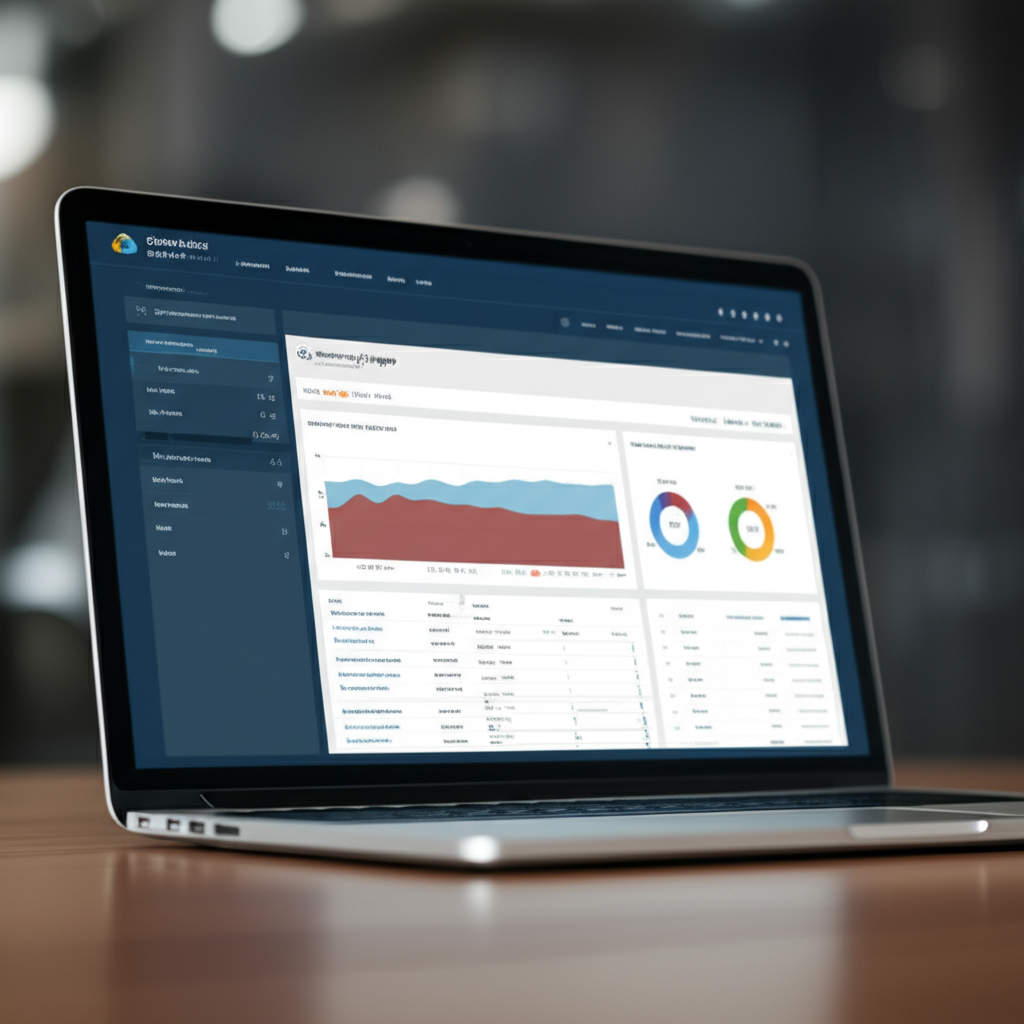
Keeping an Eye on Your GCP Goodness: Monitoring & Logging with Cloud Operations Suite
So, you’re running your applications on Google Cloud Platform (GCP)? That’s awesome! But simply running isn’t enough. You need to know if your applications are healthy, performing well, and not causing any issues. That’s where the Cloud Operations Suite (formerly known as Stackdriver) comes in.
Think of Cloud Operations Suite as your all-in-one observability toolbox. It provides the tools you need for:
- Monitoring: Tracking metrics like CPU usage, memory, request latency, and error rates.
- Logging: Centralized collection and analysis of logs generated by your applications and GCP services.
- Tracing: Understanding the journey of a request through your distributed system.
- Error Reporting: Aggregating and analyzing errors to quickly identify and fix issues.
In this post, we’ll focus on Monitoring and Logging, giving you a solid foundation for keeping your GCP applications running smoothly.
Why is Monitoring & Logging Important?
Imagine you’re driving a car without a dashboard. You wouldn’t know your speed, fuel level, or engine temperature! You’d be driving blind, hoping everything is okay. Similarly, without monitoring and logging, you’re running your applications blind.
Here’s why they’re crucial:
- Proactive Problem Detection: Identify issues before they impact users.
- Faster Troubleshooting: Quickly diagnose problems by analyzing logs and metrics.
- Performance Optimization: Identify bottlenecks and areas for improvement.
- Security Auditing: Monitor for suspicious activity and security vulnerabilities.
- Capacity Planning: Understand resource usage to anticipate future needs.
Monitoring with Cloud Monitoring
Cloud Monitoring collects metrics from your GCP resources (like Compute Engine instances, App Engine applications, Cloud SQL databases) and also from external sources if you configure them. These metrics are then visualized on dashboards, allowing you to gain real-time insights into your system’s health.
Key Concepts:
- Metrics: Numerical values that represent system performance. Examples include CPU utilization, request latency, and disk I/O.
- Time Series: A sequence of data points (metric values) collected over time.
- Dashboards: Visual representations of metrics, allowing you to see trends and identify anomalies.
- Alerts: Notifications triggered when metrics exceed predefined thresholds.
Getting Started with Cloud Monitoring:
- Access Cloud Monitoring: Navigate to the Cloud Monitoring page in the Google Cloud Console (search for “Monitoring”).
- Explore the Dashboards: You’ll find pre-built dashboards for many GCP services. Explore these to understand the key metrics being tracked.
- Create Custom Dashboards: To create your own dashboard, click the “+” icon on the left sidebar. Add charts and graphs to visualize the metrics most important to you. For example, you could create a dashboard showing CPU usage, memory usage, and request latency for your web servers.
- Set Up Alerts: Go to the “Alerting” section in the Cloud Monitoring navigation panel and click “Create Policy”. Define the metric you want to monitor, the threshold that triggers the alert, and the notification channels (e.g., email, SMS, Pub/Sub). This way, you’ll be automatically notified when something goes wrong.
Example: Monitoring CPU Usage
Let’s say you want to monitor the CPU usage of your Compute Engine instances. You can:
- Find the “CPU utilization” metric in the Cloud Monitoring metric explorer.
- Create a chart showing CPU usage over time for each instance.
- Set up an alert to notify you if CPU usage exceeds 80% for a prolonged period.
Logging with Cloud Logging
Cloud Logging provides a centralized place to collect, store, and analyze logs from your applications and GCP services. Think of it as a giant journal recording everything that happens in your environment.
Key Concepts:
- Logs: Text-based records of events, errors, and other information.
- Log Entries: Individual records in a log stream. Each entry includes a timestamp, severity level, resource information, and the log message itself.
- Log Routers: Rules that determine where logs are stored and processed.
- Log Sinks: Destinations for log entries, such as Cloud Storage, BigQuery, or Pub/Sub.
Getting Started with Cloud Logging:
- Access Cloud Logging: Navigate to the Cloud Logging page in the Google Cloud Console (search for “Logging”).
-
Explore Logs Explorer: The Logs Explorer lets you search, filter, and analyze log entries.
-
Filter Your Logs: Use the filters in the Logs Explorer to narrow down your search based on timestamp, severity, resource, or specific keywords. For example, you can search for all “ERROR” level logs from your web servers.
-
Create Log Sinks: Set up log sinks to export your logs to Cloud Storage for long-term storage, BigQuery for analysis, or Pub/Sub for real-time processing. To create a sink, navigate to “Logs Router” and click “Create Sink”.
Example: Analyzing Error Logs
Suppose your application is experiencing errors. You can use Cloud Logging to:
- Filter for log entries with severity level “ERROR”.
- Identify the source of the errors (e.g., a specific service or function).
- Examine the error messages to understand the root cause.
- Create a log-based metric to track the frequency of these errors over time.
Tips for Effective Monitoring and Logging
- Log Structured Data: Instead of just writing plain text log messages, consider logging structured data in JSON format. This makes it easier to search, filter, and analyze your logs.
-
Use Consistent Severity Levels: Assign appropriate severity levels (e.g., DEBUG, INFO, WARNING, ERROR, CRITICAL) to your log messages.
-
Monitor Key Metrics: Focus on the metrics that are most critical to your application’s performance and health.
-
Set Realistic Alert Thresholds: Avoid setting alert thresholds that are too sensitive, as this can lead to “alert fatigue.”
-
Automate Your Response: Use Cloud Functions or other automation tools to respond automatically to alerts.
Conclusion
Monitoring and logging are essential for running healthy and reliable applications on GCP. The Cloud Operations Suite provides a powerful set of tools to help you monitor your system’s performance, troubleshoot issues, and optimize your deployments. By understanding the basics of Cloud Monitoring and Cloud Logging, you can take a proactive approach to managing your GCP environment and ensure that your applications are always running at their best. Start experimenting, explore the features, and build a robust observability strategy for your GCP projects!