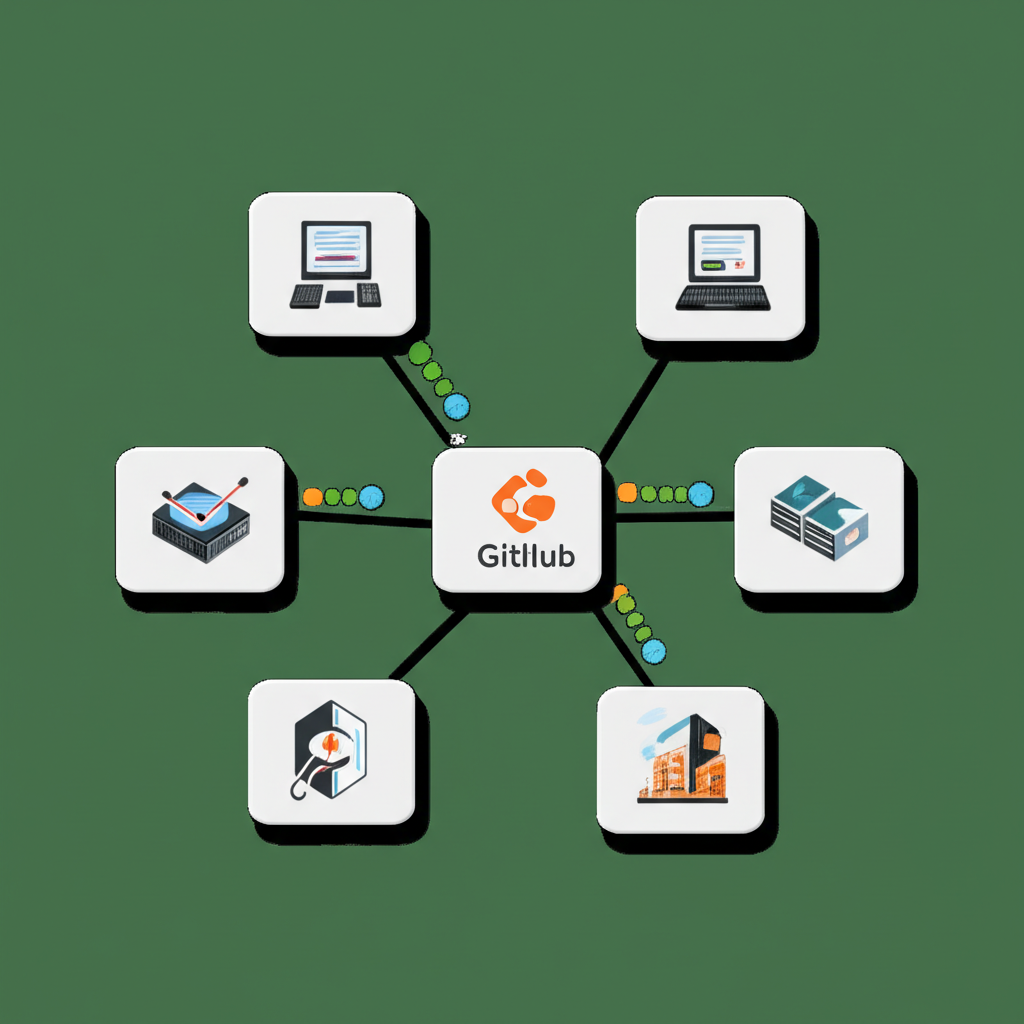
Level Up Your CI/CD: Using GitLab Runners for Efficient Job Execution
Continuous Integration and Continuous Delivery (CI/CD) is the backbone of modern software development, automating the building, testing, and deployment of your code. GitLab shines in this area, providing a robust CI/CD pipeline framework. But a powerful pipeline is only as good as the engine that runs it: GitLab Runners.
Think of GitLab Runners as the workers who execute the instructions you define in your .gitlab-ci.yml file. Without them, your pipelines won’t go anywhere! This post will break down GitLab Runners, explaining what they are, why they’re important, and how to use them effectively to get the most out of your CI/CD.
What Exactly is a GitLab Runner?
Simply put, a GitLab Runner is an application that runs your CI/CD jobs. It listens for jobs from your GitLab instance (either GitLab.com or a self-hosted server) and executes them according to the instructions in your .gitlab-ci.yml file. Think of it as a dedicated agent, tirelessly working to build, test, and deploy your code.
Why Are GitLab Runners Important?
- Automation: Runners automate the entire CI/CD process, freeing you and your team to focus on writing code instead of manually running builds and tests.
- Speed: Runners execute jobs quickly, allowing for faster feedback loops and quicker releases.
- Scalability: You can deploy multiple Runners to handle a large volume of CI/CD jobs, scaling your pipeline to meet your needs.
- Flexibility: Runners can be configured to use different executors, allowing you to run jobs on a variety of environments (e.g., Docker, shell, virtual machines).
Types of GitLab Runners
GitLab offers different types of runners to suit different needs:
- Shared Runners: These are provided by GitLab.com and are available to all projects. They are a good option for public projects or for getting started with CI/CD. Be mindful of resource limitations with shared runners.
- Group Runners: These runners are available to all projects within a specific GitLab group. This provides more control and potentially better performance than shared runners.
- Specific Runners: These runners are registered to a specific project and are only available to that project. This is the most secure and flexible option, allowing you to customize the runner environment to meet the specific requirements of your project.
How to Set Up and Use GitLab Runners
Let’s walk through the basic steps of setting up and using a GitLab Runner:
1. Choose Your Runner Type:
- For this example, let’s create a Specific Runner for your project. This gives you maximum control.
2. Install the GitLab Runner:
- Download and install the GitLab Runner application on a machine that has access to your GitLab instance and can execute your jobs. The installation process varies depending on your operating system. You can find detailed instructions on the GitLab Runner installation documentation.
- For example, on Ubuntu/Debian, you’d use the following commands:
bash

curl -L "https://packages.gitlab.com/install/repositories/runner/gitlab-runner/script.deb.sh" | sudo bash

sudo apt-get update

sudo apt-get install gitlab-runner
- For example, on Ubuntu/Debian, you’d use the following commands:
3. Register the Runner:
- Once installed, you need to register the runner with your GitLab project. Run the
gitlab-runner registercommand and follow the prompts.sudo gitlab-runner register- You’ll need:
- GitLab instance URL: This is the URL of your GitLab instance (e.g., `https://gitlab.com` or your self-hosted instance).
- Registration token: You can find this token in your project’s settings under Settings > CI/CD > Runners. Expand the “Set up a specific runner manually” section.
- Executor: Choose an executor that matches your needs.
dockeris a popular choice if your jobs involve Docker containers.shellis another option for simpler scripts. - Other configuration options: You’ll be asked about tags, whether the runner should be locked to the project, etc. These are important for managing your runners effectively.
4. Configure Your .gitlab-ci.yml File:
- Ensure your
.gitlab-ci.ymlfile uses the tags you defined when registering the runner. This tells GitLab which runner to use for which job.stages: - build - test - deploy build_job: stage: build script: - echo "Building the application..." - # Add your build commands here tags: - my-specific-runner - docker test_job: stage: test script: - echo "Running tests..." - # Add your test commands here tags: - my-specific-runner - docker
Explanation:
tags:: This crucial section tells GitLab to only use runners that have themy-specific-runneranddockertags for thebuild_jobandtest_job. This ensures your jobs run on the correct infrastructure.
5. Start Your Pipeline:
- Commit and push your
.gitlab-ci.ymlfile to your GitLab repository. This will trigger your CI/CD pipeline, and your registered runner will pick up and execute the jobs.
Tips for Efficient GitLab Runner Usage:
- Use Docker: Docker simplifies dependency management and ensures consistent environments for your CI/CD jobs.
- Caching: Utilize GitLab’s caching feature to reuse dependencies and reduce build times.
- Parallel Execution: Run multiple jobs in parallel to speed up your pipeline.
- Tags: Use tags effectively to route jobs to the appropriate runners based on their capabilities and resource requirements.
- Monitor Runner Performance: Regularly monitor your runner’s performance to identify bottlenecks and optimize its configuration.
- Keep Runners Up-to-Date: Ensure your GitLab Runner application is always updated to the latest version for security and performance improvements.
- Consider Auto-Scaling: For highly demanding CI/CD workloads, explore auto-scaling runners to automatically adjust the number of runners based on demand. This helps optimize resource utilization and prevent job queuing.
Conclusion:
GitLab Runners are essential for efficient and effective CI/CD pipelines. By understanding how they work and how to configure them properly, you can significantly improve your development workflow, reduce build times, and accelerate your release cycle. Start experimenting with different runner configurations and executors to find the best setup for your project. Happy building!